Join the beta

Free · Mac, iPad, and iPhone · TestFlight beta

Your scores, to play and to understand.

A music studio for Mac, iPad, and iPhone. Annotate with Apple Pencil, mark the themes and cadences of every piece, and write your own music by hand.

We’ll email you when a beta spot opens and on launch day. That’s it.

The three modes

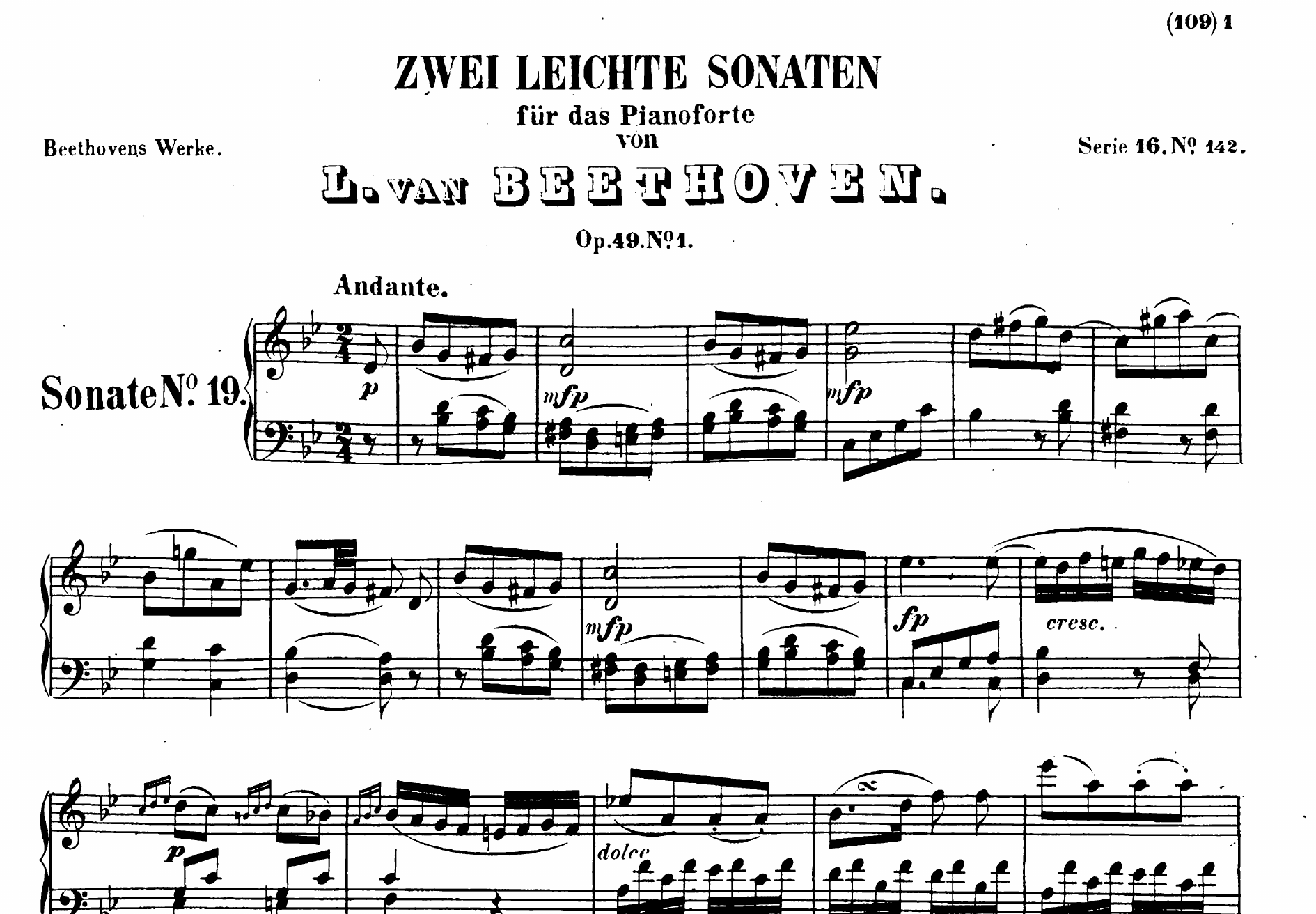
Beethoven’s Sonata Op. 49 No. 1 on an iPad, with handwritten fingerings

The score full screen, with your fingerings on their own layer.

Mark a passage, say what it is, and follow it through the piece.

Write by hand on blank staves.

Who it’s for

For people who study, teach, play, and write music.

Students

Prepare this week’s piece with your fingerings and walk into analysis class with the themes already marked.

Teachers

Fingering, chords, and figured bass on separate layers: show the one each lesson needs and hide the rest.

Performers

Read full screen and jot down a breath or a bowing without leaving the score.

Composers

Write by hand on staff paper, without wrestling a notation editor.

Play

The score, and nothing else.

MaestroNote opens the score full screen. On iPad, your finger turns pages and zooms, and Apple Pencil writes without switching modes. One tap brings back the controls when you need them.

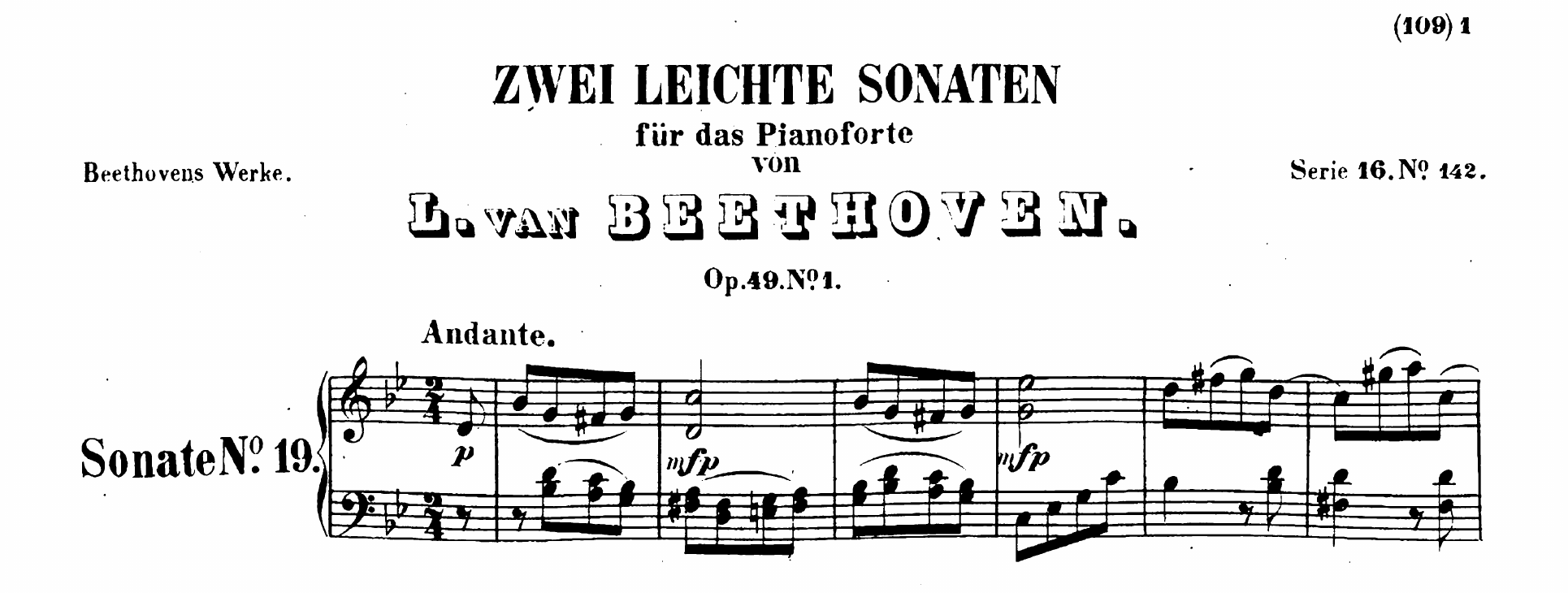
Opening of Beethoven’s Sonata Op. 49 No. 1 with handwritten fingerings, the Andante highlighted, and the page number covered
Layers
Beethoven, Sonata Op. 49 No. 1. Every mark sits on a layer: fingerings on one, highlights on another. Tap one to hide it; hide Score Corrections and the page number comes back, because the corrector covers without erasing.

Layers

Fingering, chords, figured bass, or whatever you need, each on its own layer. Show and hide them separately.

Score Corrector

Cover a page number, a printed fingering, or a smudge from the scan. The original PDF stays untouched.

Pages in order

Rotate, crop margins, and reorder the pages of a scan. Your annotations stay where they belong.

On Mac and iPhone, Play is for reading: ink is for iPad with Apple Pencil.

Analyze

See how a piece is built.

Draw a box around a passage and say what it is: a motif, a theme, a cadence. MaestroNote saves it as material and takes you to every place it appears, even across systems and pages.

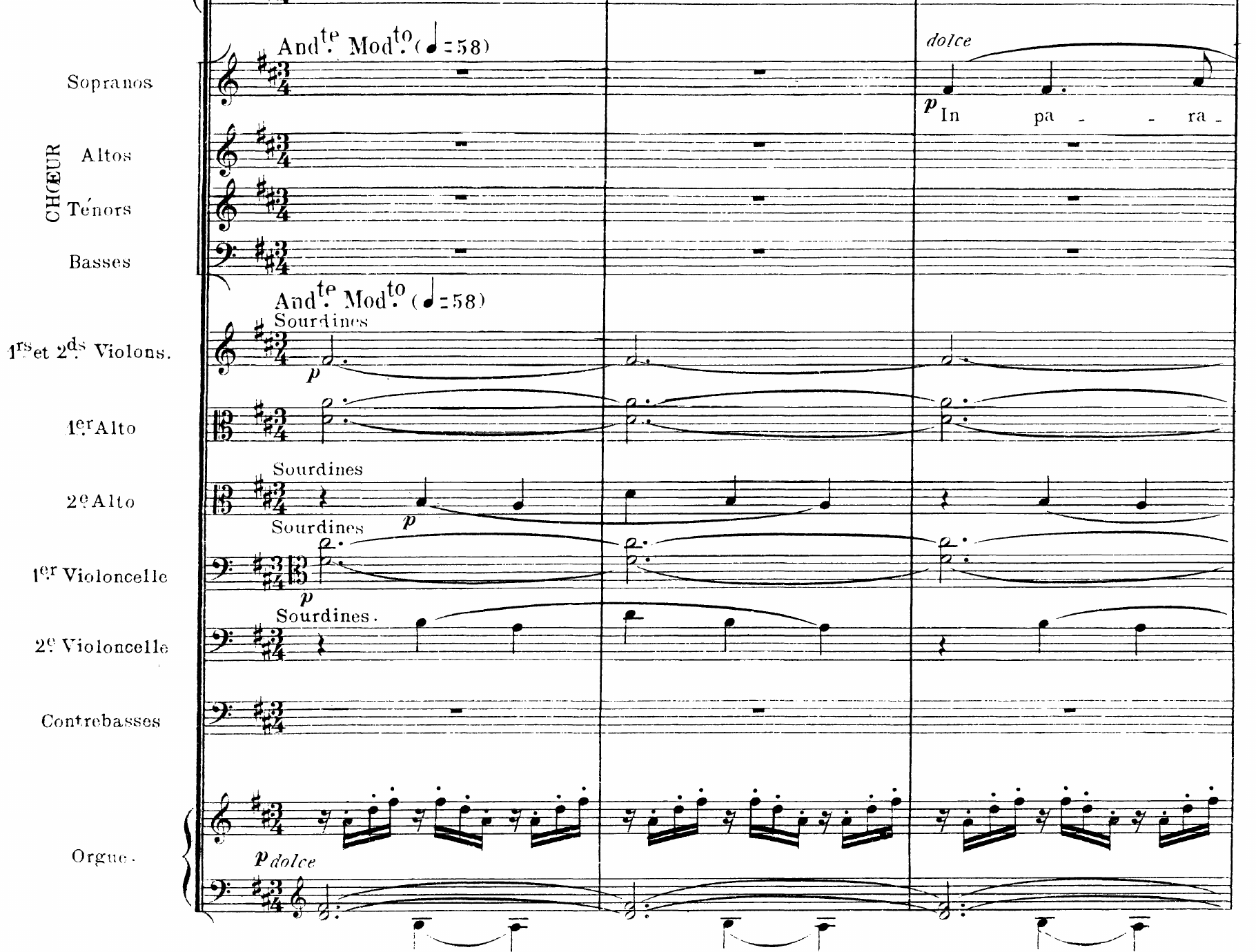
Choir, strings, and organ in the opening bars of “In Paradisum”, with marked passages
Fauré, Requiem, “In Paradisum”. The organ arpeggio, marked as an ostinato in its three appearances; the theme entering in the sopranos.

Materials and passages

A material has a name, a type, and its own notes. Each passage keeps its details: bars, instruments, key, what changes this time.

Relations

This theme develops that one; this section contrasts with the other. Relate materials without merging them, even across pieces.

Find Material

Search your whole library for “ostinato” and jump straight to the passage, whichever piece it’s in.

Side by side

On iPad and Mac, put the exposition next to the recapitulation, or next to another piece in your library. Each side turns its pages and zooms on its own.

You do the analysis. MaestroNote doesn’t recognize music automatically: it saves, organizes, and finds what you mark.

3434 Waltz
A new score on blank staves. The app doesn’t turn ink into notes: your strokes stay exactly as you wrote them.
Compose

Write your music by hand.

Create a score of 1 to 32 pages, ruled for single staves, piano, voice and piano, short score, or orchestra on A3, or on blank or dotted paper. If it runs short, add pages from its settings, up to 32. Write with Apple Pencil as you would on paper, with a fountain pen too: a right-handed nib that opens as you press. No notes to drag around, no editor correcting you.

The desk

A desk for every project.

Pieces rarely start as a score. They start as four bars you don’t want to lose. New Idea opens a single staff, ready to write, and the paper grows only when the idea asks for it: a staff at a time, then a page at a time. Each project keeps its sketches on a desk, wherever you put them.

The theme fits on one staff. Its variant keeps the same opening, sits beside it joined by a line, and gets a second staff only once it needs one. Below, the sketches for the trio, stacked.

Variants and stacks

Duplicate as Variant copies a sketch with its ink and lays the copy beside the original, joined by a line, so you can try another ending without losing the first. Drop one sketch on another to stack them.

Loose ideas

An idea you jot down outside a project waits in Loose Ideas until you move it to one or start a new project with it. On iPhone and iPad, open a blank one from the app icon, from Shortcuts, or by telling Siri “New idea in MaestroNote”.

Paper for the formation

Single staves, piano, voice and piano, or short score. On piano paper an idea starts as one braced system and grows a system at a time. Once a sketch has ink, Continue on Other Paper opens a blank one beside it, say to take a melody to short score.

The score, on the desk

When it’s time to write the piece out clean, New Score on the desk creates a score that belongs to the project, on orchestra paper if you need it. Add it to your library when you want to play it.

On iPad you write with Apple Pencil. On iPhone you write with your finger, in a lens that magnifies the staff and moves along it as you go. On Mac you can arrange the desk and read your sketches, but not write them.

Your library

Organized your way, and always yours.

Your own folders
Organize by lesson, by repertoire, or however suits you. Nobody asks you to fill in composer, level, or genre.
Mac, iPad, and iPhone
A native app on each, with the same library synced through iCloud.
Works offline
Anything on your device can be read and annotated without a connection, even at a rehearsal with no signal.
Originals untouched
Importing makes a copy. Marks, crops, and corrections are stored separately from the PDF.
No account
Nothing to sign up for. Your scores live on your device and in your iCloud.

No surprises

What MaestroNote isn’t.

A notation editor.

If you’re after something like Dorico or MuseScore, this isn’t it. Here, music is written by hand.

An automatic music reader.

It doesn’t recognize the notes in a PDF or find motifs on its own. The ear and the judgment are yours.

An AI app.

It doesn’t use AI. Your scores and annotations stay on your devices and in your iCloud.

A PDF exporter, yet.

Exporting a score with your annotations is postponed, with no date. For now, your work lives in the app.

FAQ

What people usually ask.

How much does it cost?

Nothing. MaestroNote is free.

Which devices does it run on?

Mac with macOS 14 or later, and iPad and iPhone with iPadOS or iOS 17 or later.

Do I need an Apple Pencil?

To write on iPad, yes. On iPhone, you write ideas in Compose with your finger. Without an Apple Pencil you can still read, organize your library, and mark passages in Analyze.

Does it sync between my devices?

Yes, through your iCloud account: library, scores, ink, and analysis. It isn’t instant, and it isn’t for sharing with other people.

Can I download from IMSLP or scan?

Not from the app yet; both are on the way. In the meantime, import any PDF from Files or the Finder.

When does it launch?

When the beta confirms your work travels safely between devices. Join the list and we’ll tell you that day.

A note from the author

I built MaestroNote to improve a composer’s day-to-day. No frills: it’s a music notebook on steroids.

— Jonathan, creator of MaestroNote

TestFlight beta

Try MaestroNote with your own scores.

Free for Mac, iPad, and iPhone. We’ll email you when a beta spot opens and on launch day. That’s it.